

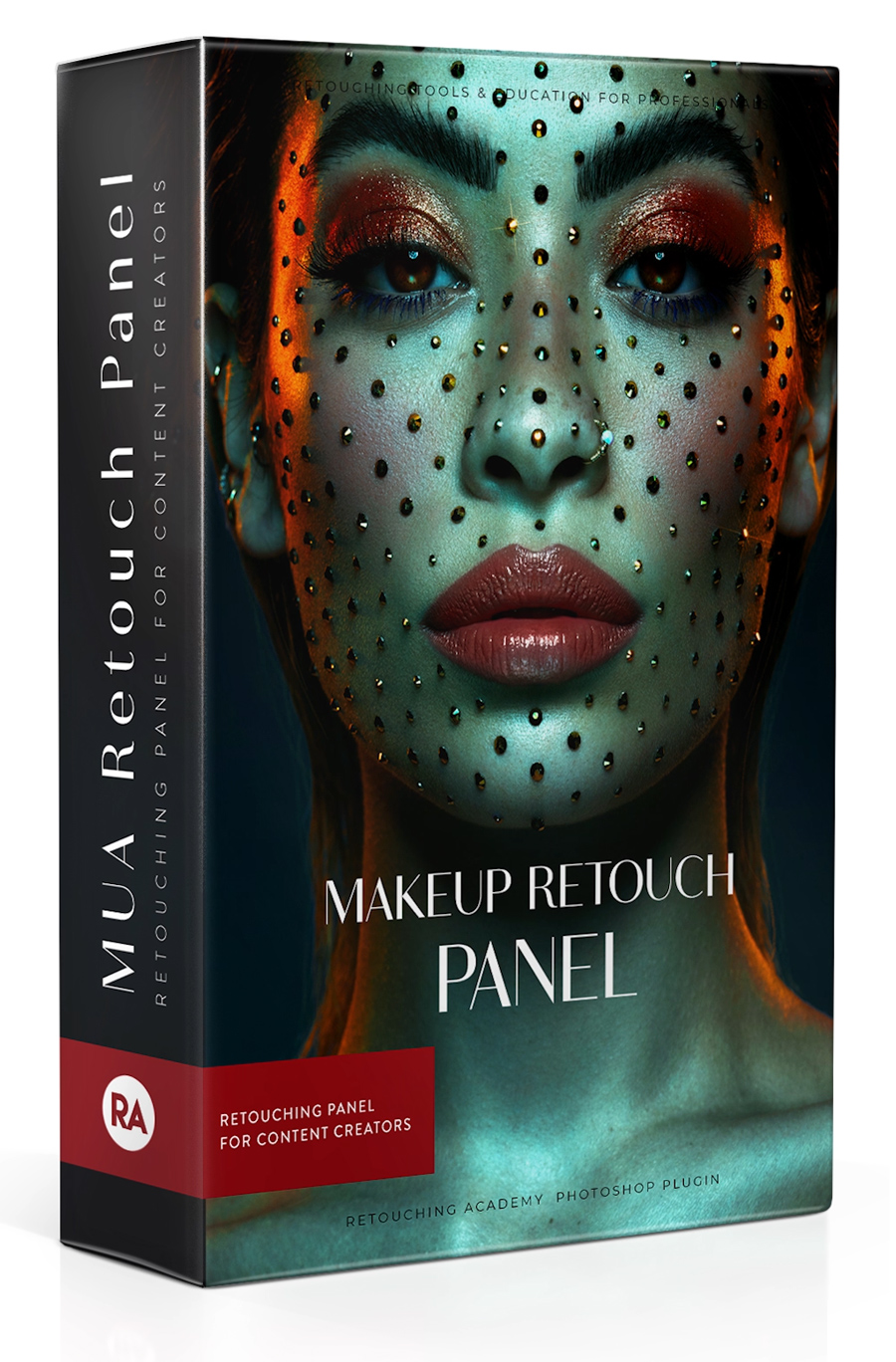
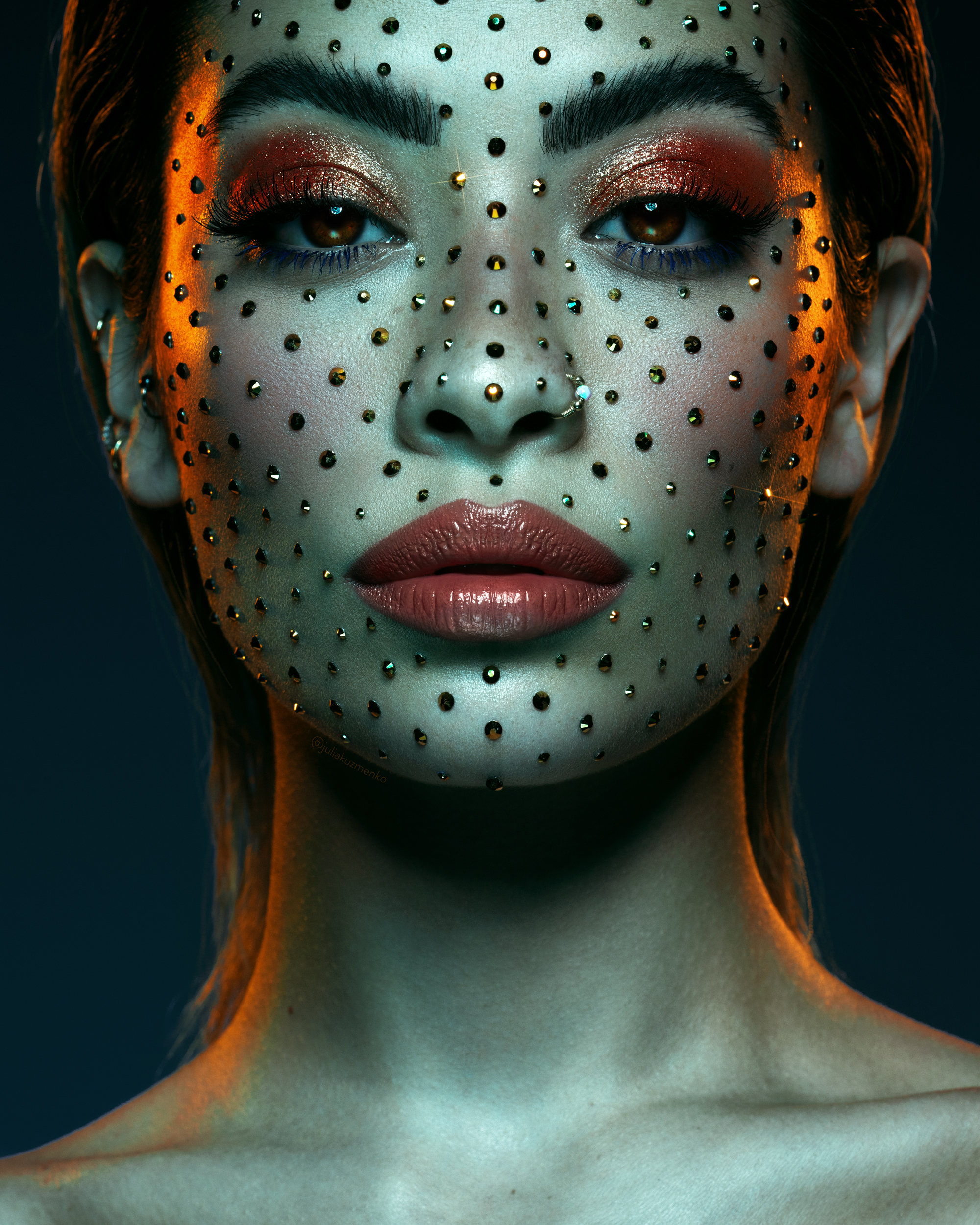
Description
Work Smart, Not Hard!
Who is this Panel For?
💄 Photographers, retouchers, and any creators in the beauty and fashion industry who are not in a position to outsource beauty retouching to professionals.
📸 Photographers who don’t have access to professional Makeup Artists can explore their creativity in post-production and diversify their portfolio work.
The MUA Retouch Panel will expand your skillset as a beauty content creator and allow you to have more control over your creative process.
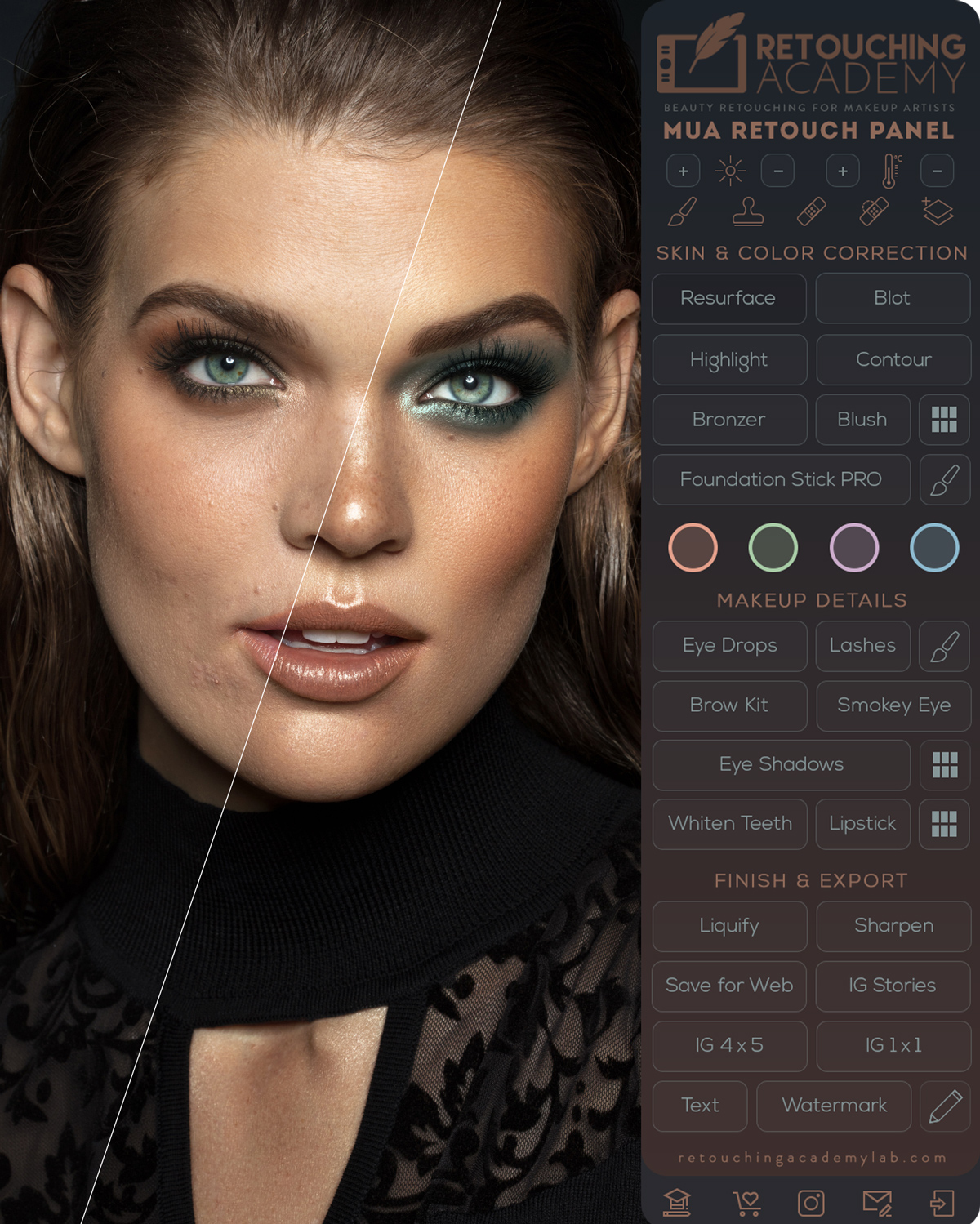
Developed with expert insights by Julia Kuzmenko McKim and Jordan Liberty.
Video tutorials are available to the panel users via their Member Accounts on this website.
for Makeup & Beauty Retouching
While our Beauty Retouch panel focuses on the key stages of the general retouching workflow, the MUA Retouch panel adds a range of incredibly useful scripts for makeup and beauty retouching specifically.
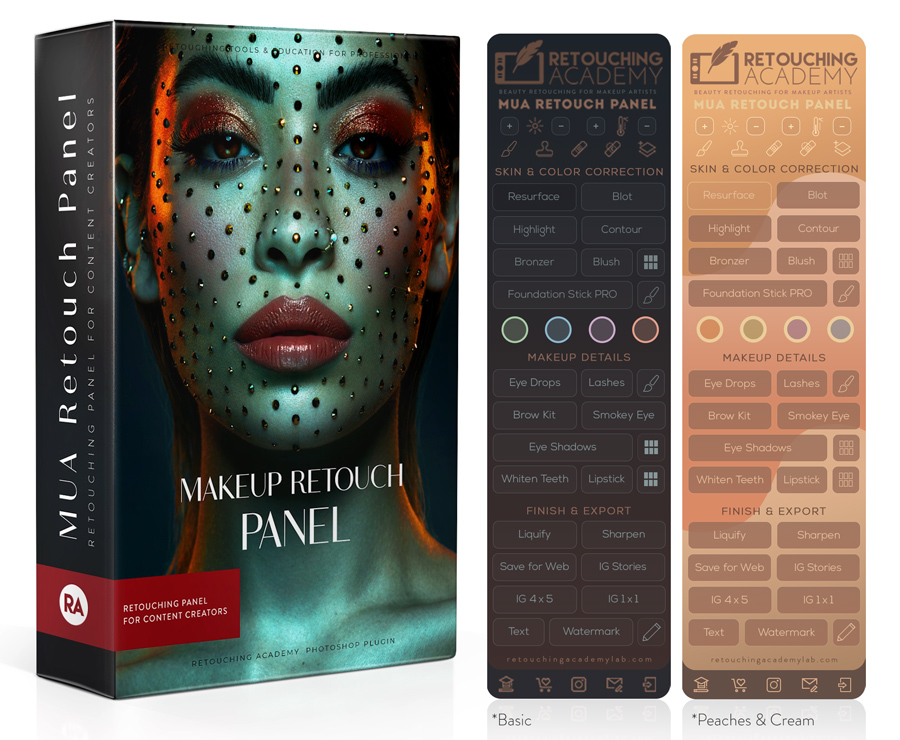
Each panel is a powerful workflow accelerator independently, and together they will significantly streamline your beauty retouching. Compare the panels and get 50% off the MUA Retouch panel when buying them together.
This panel is widely used even by artists without extensive knowledge of retouching. It comes with a concise FREE Photoshop Essentials for Beauty Retouching video course for beginners.
📌 Our detailed video training & tutorials will help you get to know the panel functions quickly, save a lot of time, and consistently produce high-quality retouching results.
📌 The installation takes less than a minute via the Adobe Creative Cloud app. Follow the Installation Guide provided in your post-purchase email and linked via the Thank-You and Member Account pages.
📌 Comes with multiple digital color palettes and custom Photoshop brushes, including dynamic Brow & Lash brushes (long & short versions).
Expand Your Creativity in Post-Production
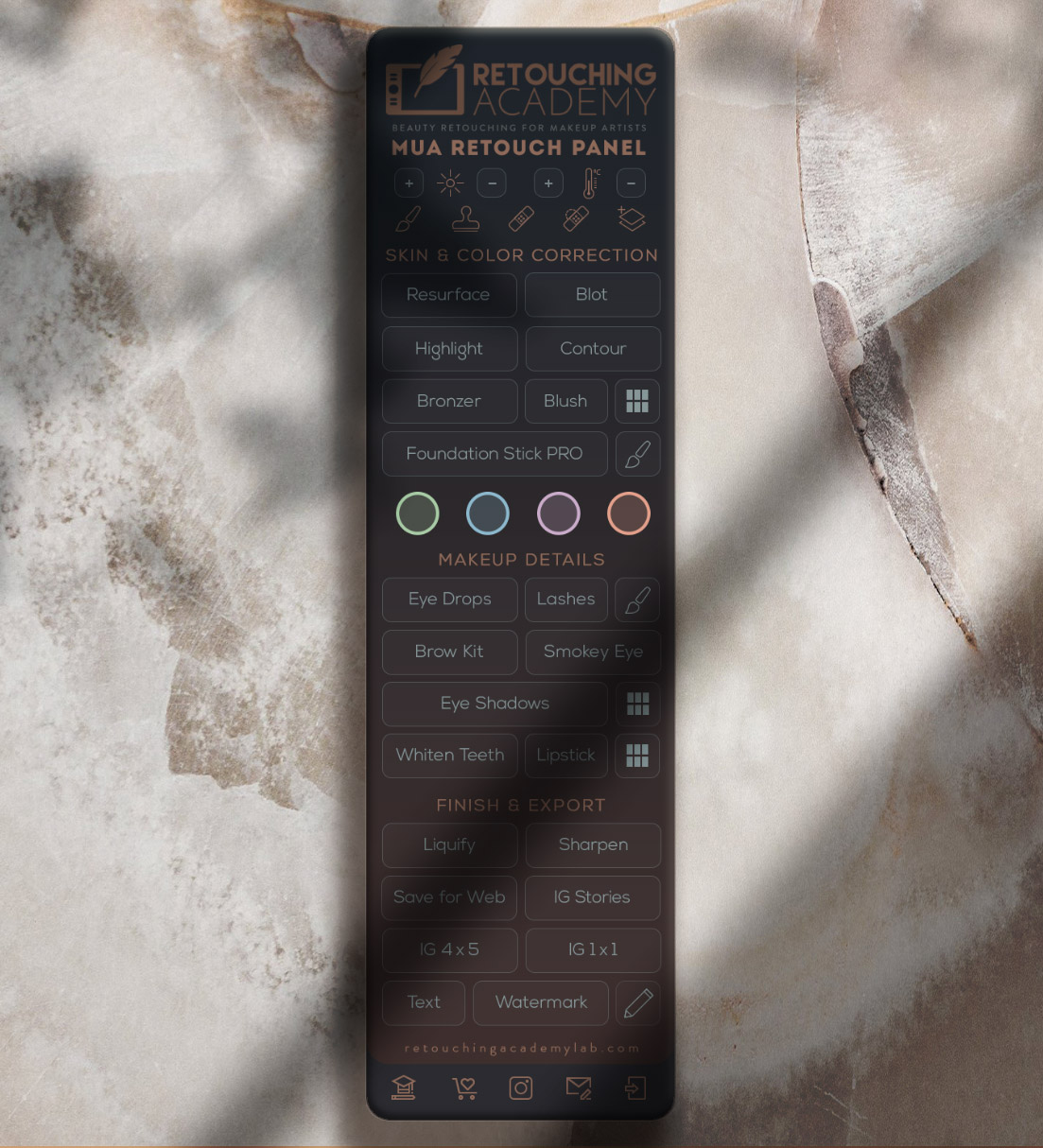
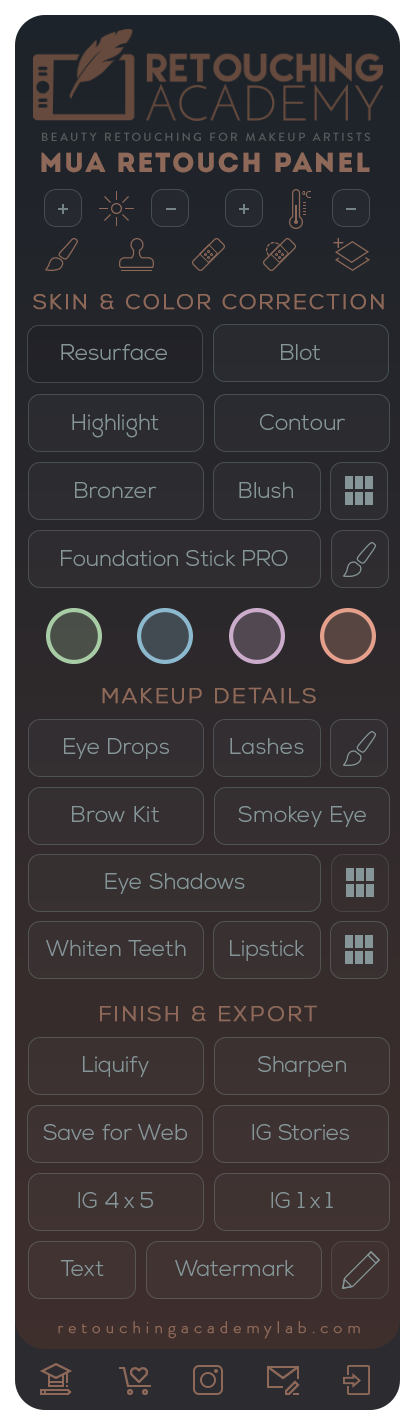
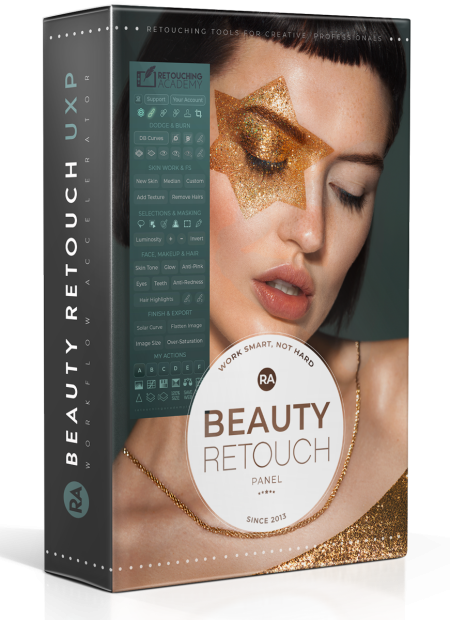
Each section of the panel has a specific role in your beauty retouching workflow:
✔︎ The top section of the panel is dedicated to basic exposure and color corrections, while also housing the main retouching tools.
✔︎ The Skin & Color Correction section scripts will help you quickly clean up and even out skin texture, sculpt and add volume to the facial features.
✔︎  The Makeup Details section – all the fun tools! – will help to quickly retouch eyes, teeth, and makeup. Fill in eyelashes and brows with unmatched realism and precision using our custom Lash brushes.
✔︎ Add your personal watermark or any text to your image with a click of a button.
✔︎ The Finish & Export section takes all the guesswork out of the final stages of post-production. Adjust shapes, sharpen, crop, and export your images in the correct size and format to ensure your work looks impeccable on your website and social media.
✔︎ The buttons of the bottom row will take you to the helpful pages on our website where our detailed video tutorials will guide you through each step of the retouching process.
Expand Your Creativity in Post-Production
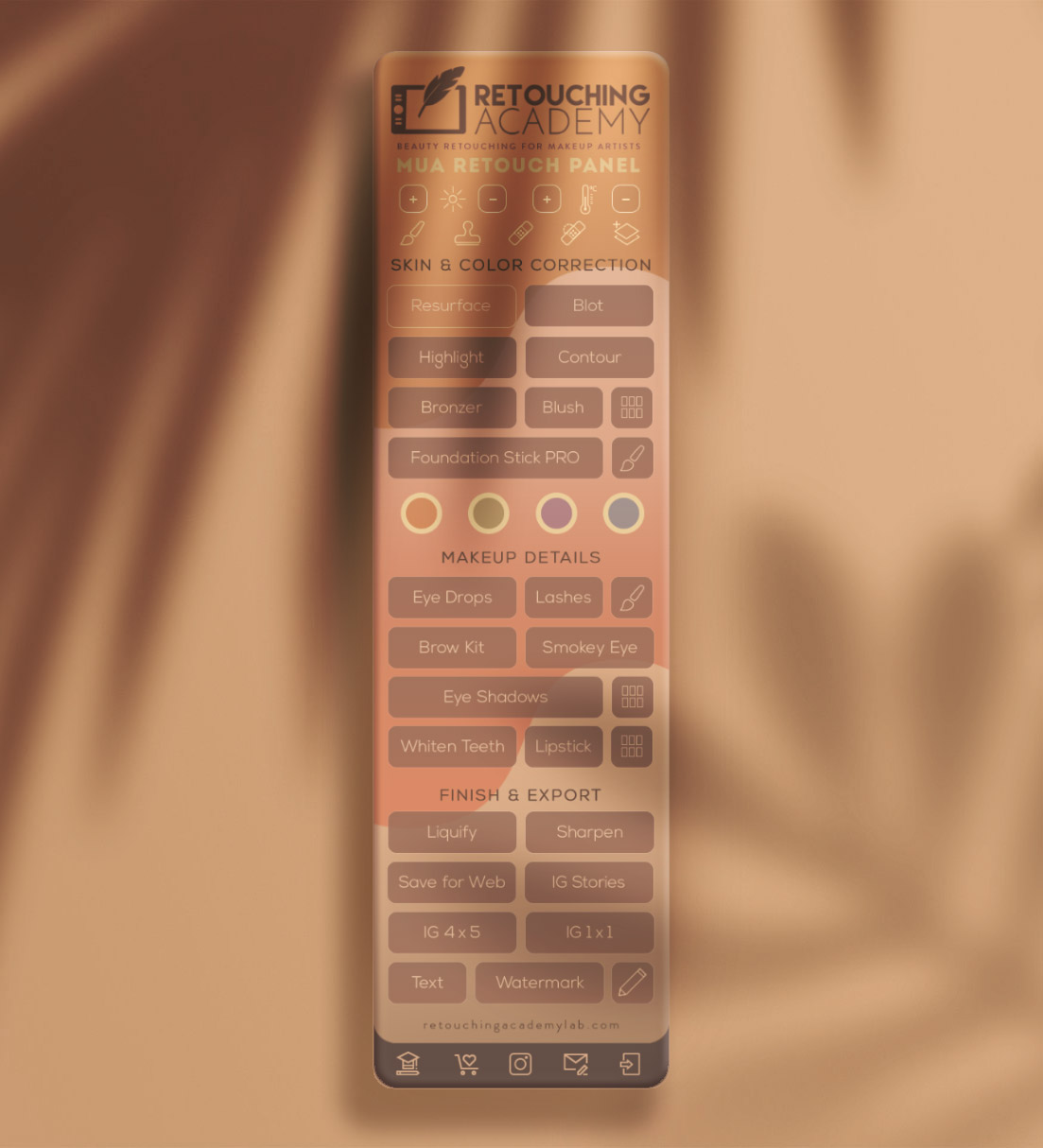
Each section of the panel has a specific role in your beauty retouching workflow:
✔︎ The top section of the panel is dedicated to basic exposure and color corrections, while also housing the main retouching tools.
✔︎ The Skin & Color Correction section scripts will help you quickly clean up and even out skin texture, sculpt and add volume to the facial features.
✔︎ The Makeup Details section – all the fun tools! – will help to quickly retouch eyes, teeth, and makeup. Fill in eyelashes and brows with unmatched realism and precision using our custom Lash brushes.
✔︎ Add your personal watermark or any text to your image with a click of a button.
✔︎ The Finish & Export section takes all the guesswork out of the final stages of post-production. Adjust shapes, sharpen, crop, and export your images in the correct size and format to ensure your work looks impeccable on your website and social media.
✔︎ The buttons of the bottom row will take you to the helpful pages on our website where our detailed video tutorials will guide you through each step of the retouching process.
Correcting Color Issues
Color Correction is One of the Most Common Post Production Tasks
Makeup colors rarely get photographed true to how they are perceived by the naked eye during the shoot. This is due to the nature of strobe lighting and other variables like camera and file processing settings (your monitor calibration matters too).
Color corrections are especially important when retouching content for beauty brands to ensure appropriate skin tones and makeup products’ colors.
We’ve created our Color Corrector scripts (circle buttons) following the guidance of the professional Makeup Artist, Photographer, and Educator Jordan Liberty.
More video tutorials are available to the MUA Retouch Panel users via their Member Accounts
By 2028, the global beauty sector is forecasted to reach $590 billion, growing at 6% annually
Both the U.S. and global beauty industries are poised for steady growth over the next five years, with significant contributions from clean beauty trends, digital marketing channels, and regional market expansions in Asia-Pacific and the Middle East.
By 2028, the global beauty sector is forecasted to reach $590 billion, growing at 6% annually
Both the U.S. and global beauty industries are poised for steady growth over the next five years, with significant contributions from clean beauty trends, digital marketing channels, and regional market expansions in Asia-Pacific and the Middle East.
What Our Users Are Saying
What Our Users Are Saying
Frequently Asked Questions
Who is the Beauty Retouch panel for?
The Beauty Retouch panel is created for photographers or retouchers already familiar with key retouching techniques and terminology, even if only superficially.
It simplifies and speeds up all phases of the retouching workflow, including finishing touches, quality control, and image export with proper settings.
You can also link 6 (six) of your own custom actions and run them right from the panel’s interface.
Our detailed video training & tutorials will help you get to know this panel quickly, use it successfully, and save a lot of time in the long run.
Compare it with the MUA Retouch panel here.
Who is the MUA Retouch panel for?
While the Beauty Retouch panel focuses on the key stages of the general retouching workflow, the MUA Retouch panel adds a range of incredibly useful scripts specifically for makeup and beauty retouching.
Each panel can be used independently, as they both contain essential retouching technique scripts. However, by adding the MUA Retouch panel to your Beauty Retouch, you significantly streamline your beauty retouching workflow.
The MUA Retouch panel is created for non-retouchers. Its scripts mimic real makeup and beauty products’ effects, making it intuitively familiar to all beauty enthusiasts and easy to use.
The panel comes with a FREE concise Photoshop Essentials for Beauty Retouching video course for beginners.
Check out the comparison of these panels here.
Who are the Retouching Academy Courses for?
The MUA Retouch panel is created for non-retouchers. Its scripts mimic real makeup and beauty products’ effects, making it intuitively familiar to all beauty enthusiasts and easy to use.
Our courses are created for photographers, retouchers, and anyone interested in mastering professional retouching techniques at any skill level.
Each course description specifies the recommended experience & skill level:
♦️ Beginner-level Courses & Bundles – perfect for those new to beauty and portrait retouching, these courses provide a strong foundation in key professional retouching techniques.
♦️ Intermediate to Advanced Courses & Bundles – created for freelancers, photographers, and retouchers who are familiar with Photoshop and basic retouching, and are interested in advancing their skills, refining their workflows, and expanding their freelance career options.
With step-by-step guidance and hands-on practice, our courses ensure a structured and immersive learning experience.
The in-depth course lessons help our students progress quickly and immediately implement the new practical knowledge in their work.
Who is the Pixel Juggler panel for?
Anyone who uses Adobe Photoshop. We created this panel to simplify access to useful Photoshop functions which are typically hidden in various submenus.
We also added a few custom scripts and tools that will complement our Beauty Retouch and MUA Retouch panels’ functionality.
Do people use both panels?
Absolutely! Our initial idea was to make the MUA Retouch panel a fantastic complement to the Beauty Retouch panel for beauty photographers and retouchers. And we designed it to be easy to use by non-retouchers as well.
While the Beauty Retouch panel focuses on the key stages of the general retouching workflow, the MUA Retouch panel adds a range of incredibly useful scripts specifically for makeup and beauty retouching.
Each panel can be used independently, as they both contain essential retouching technique scripts. However, by adding the MUA Retouch panel to your Beauty Retouch, you significantly streamline your beauty retouching workflow.
Check out the comparison of these panels here.
Do I need Adobe Photoshop to use these panels?
Yes, our panels are Photoshop plugins, compatible with Adobe® Photoshop® CC2021 (v22.0) and later for Win & Mac OS, including M-series chip Apple computers.
📌 If you are completely new to Photoshop, we recommend starting with our Photoshop Essentials for Beauty Retouching course.
I am new to Photoshop, is that Ok?
If you are completely new to Photoshop, consider taking our Photoshop Essentials for Beauty Retouching course first. It will introduce you to the Photoshop tools and interface, retouching essentials, help you set up your custom workspace and convenient keyboard shortcuts for efficient retouching.
🔴 This course will get you started in beauty retouching in a few hours!
Our detailed free retouching panels video tutorials will teach you to use the panels to properly retouch, finalize, and export edited photos for your website and social media.
How many computers can I use these panels on?
You may install and use each panel on up to 2 (two) computers simultaneously, which can be laptops and/or desktop computers, either or both Mac OS or Windows (see their Software Product License).
You can also install and use your panel on other computers, but no more than 2 panels can be used at the same time. You will need to reset your License Activations in Photoshop via your Member Account > Reset License Activations.
Please contact our support team if you’d like to purchase additional licenses to use your panel on more computers at the same time.
What is included in my purchase?
Included in Your Purchase:
▸ One panel license (up to 2 computers), Win & Mac OS;
▸ First year of Maintenance & Support subscription; Lifetime option is available here (BR) and here (MUA).
▸ Dedicated Tech & Administrative Support;
▸ Free access to the installation files for new Photoshop versions with an active Support & Maintenance subscription;
▸ Beauty Retouch | Additional features: D&B Brushes, Hair Highlights (small & large);
▸ MUA Retouch | Additional features: dynamic Brow & Lash Brushes (long & short);
▸ FREE exclusive Photoshop Essentials for Beauty Retouching (self-paced);
▸ Beauty Retouch | FREE Beauty Retouch Panel Training (self-paced);
▸ FREE access to video training and bonus materials;
▸ Exclusive discounts for RA Retouching Courses;
▸ Exclusive discounts for premium beauty retouching practice files.
📦 Your Instant Digital Download Includes:
▸ Installation CCX file (Adobe Creative Cloud), for Win and Mac OS;
▸ Quick Start Guide PDF;
▸ Additional Features installer (.jsx);
▸ Additional Features: Custom tool presets, brushes, and more.
Installation instructions, video tutorials, and the FREE Photoshop Essentials for Beauty Retouching Course are accessible via your Member Account immediately after the purchase.
Please refer to our FAQ page for instant answers or contact our Support Team, we are always here to help!
Why do I need an active subscription?
You will quickly realize that the benefits you get out of these panels year-round are well worth the $39.99 annual investment (or $4.99 monthly), which breaks down to just $0.10 a day.
The subscription model is an industry standard and allows us to keep our Support and Development teams always ready to help you, continue updating the panels, and fix any software issues caused by the regular Photoshop updates in a timely manner.
What if I don't like the panel I purchased?
Thousands of creative professionals worldwide have been using our panels for a decade and they love them!
How do we know?
They have been showing them off on @retouchingpanels for years, they leave their kind testimonials, and tell us directly in their emails whenever they connect with our team.
Over 90% of the legacy RA Panels users have upgraded to the UXP subscription-based versions to be able to continue working with them.
We are confident that if you watch our video tutorials to learn how to use the panels properly (they are quite simple to use), you will love them too!
With that being said, we offer a 30-day money-back guarantee, so it is easy and risk-free for you to try. If you’re not completely satisfied, simply reach out to us within 30 days of your purchase, and we’ll make it right!
How can I enroll in a course?
Immediately after you purchase any of our courses or bundles, you receive an email with login details and instructions, so you can start learning immediately.
If you have previously purchased our courses, you can find login links on this page: Customer Login, or log in via the top bar menu on this website: Learn > Your Course Library.
Retouching Panels Support & Updates
Please refer to our FAQ page for instant answers or contact our Support Team, we are always here to help!
With an active Support & Maintenance subscription, you will have access to the updated installation files free of charge via your Member Account on our RA Lab website that is hosting our panels, every time Adobe releases new Photoshop versions.
🧨 We encourage you to hold off updating Photoshop to the latest versions as soon as they come out if you are using any third-party plugins for your work.
When a Photoshop update causes errors in plugins, it typically takes a couple of days for developers to identify the issue, re-code and release the new updated version of the plugin.
If you are eager to update, please consider keeping the previous version of Photoshop on your computer just in case the plugins you rely on for work stop functioning because of the Photoshop update.
We announce when our panels are updated via our newsletter, on our social media pages, and in our Facebook group.


Reviews
There are no reviews yet.